Setup Guide
Configuration
All hotkeys can be changed. Simply go to the chrome extensions tab (get there by either entering "chrome://extensions" in the URL bar or from Chrome menu -> tools -> extensions). At the bottom there is a button for "Keboard Shortcuts" where you can change the hotkeys to those of your choosing. In this menu you can also set the hotkeys to be global across either Chrome or your system.
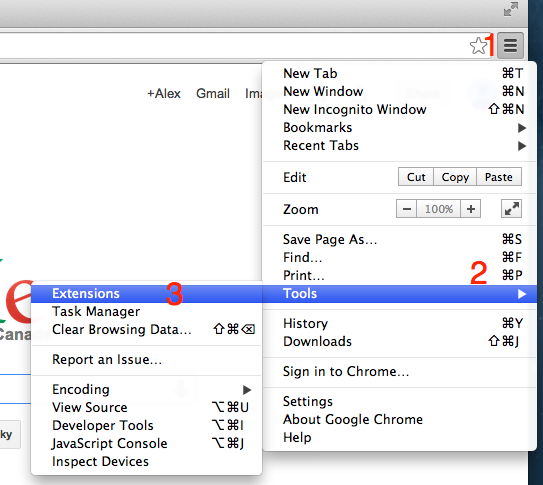
1. Go to extensions page.

2. Click keyboard shortcuts.

3. Set new shortcuts.
Popup Window
Once Streamkeys is installed you will see an "SK" icon in your browser window next to the URL bar (and any other extension icons that you may have installed). Clicking on this icon will open up the extension popup window. From the popup window you can enabled/disable support for each currently connected music site tab. To do this go to the site's settings pane by clicking on the "settings" icon next to the site name. Clicking on a site's favicon will also set the focus to that tab in the browser.
Options
On the options page you can enable/disable Streamkeys for any site. You can get to the options page from either the Chrome extensions tab (chrome://extensions) or from the Streamkeys popup window. This page is useful if you have multiple different media sites open, and want Streamkeys to ignore any number of them.
Remove
To remove Streamkeys (or any other Chrome extension) go to the Chrome extensions tab (chrome://extensions) and click the trash icon next to the Streamkeys listing.
Default Hotkeys
Play/Pause: Media Key Play
Next Song: Media Key Next
Previous Song: Media Key Previous
Mute: Ctrl+Shift+2
Like: No default key, set in Chrome extension options or use the popup player.
Dislike: No default key, set in Chrome extension options or use the popup player.