Configuration
All hotkeys can be changed. Simply go to the chrome extensions tab (get there from Chrome menu -> tools -> extensions). At the bottom there is a button for "Keboard Shortcuts" where you can change the hotkeys to those of your choosing. In this menu you can also set the hotkeys to be global across either Chrome or your system.
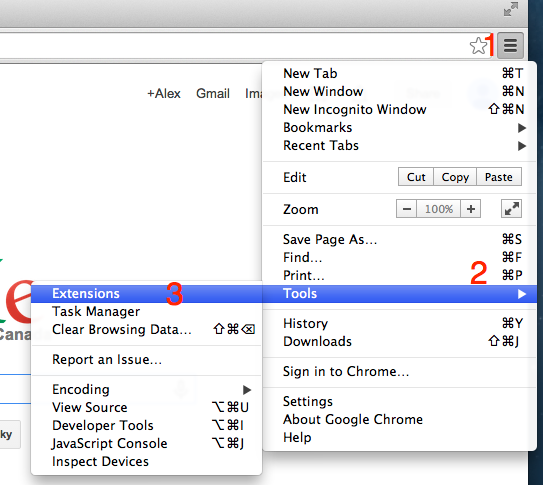
Go to extensions page
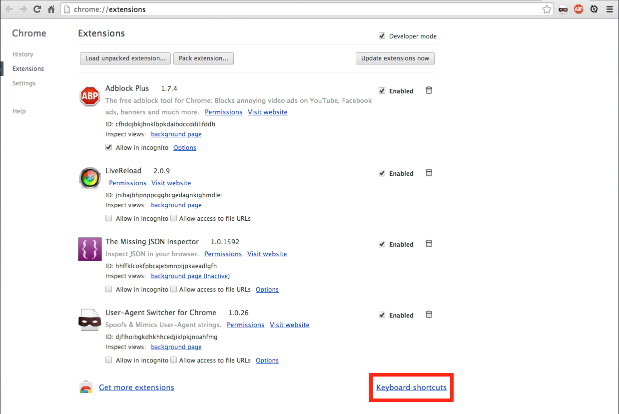
Click keyboard shortcuts
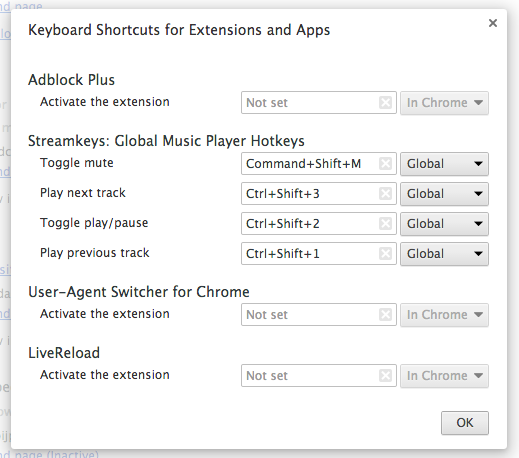
Set new shortcuts
Mac users: Currently there is an issue with capturing media key presses in Chrome on macs. This issue is slated to be fixed in the next Chrome release, but until then you will have to use other keys, sorry!
Default Hotkeys
Mac:
Play/Pause: Alt + Shift + 2Next Song: Alt + Shift + 3
Previous Song: Alt + Shift + E
Mute: Alt + Shift + M
Windows:
Play/Pause: Media Key PlayNext Song: Media Key Next
Previous Song: Media Key Previous
Mute: Alt + Shift + M
Options
On the options page you can enable/disable Streamkeys for any site. To do this, go to the Chrome extension tab, find the Streamkeys extension in the list, and click on the 'options' link. This feature is useful if you have multiple different media sites open, and want Streamkeys to ignore any number of them.